

This guide is in English for now. The tool itself works in your language.
My data › Help › Businesses, parties and items
Items and services
Goods and services with their HSN/SAC code, unit, rates and GST. Pick one in any tool and the whole line fills in.
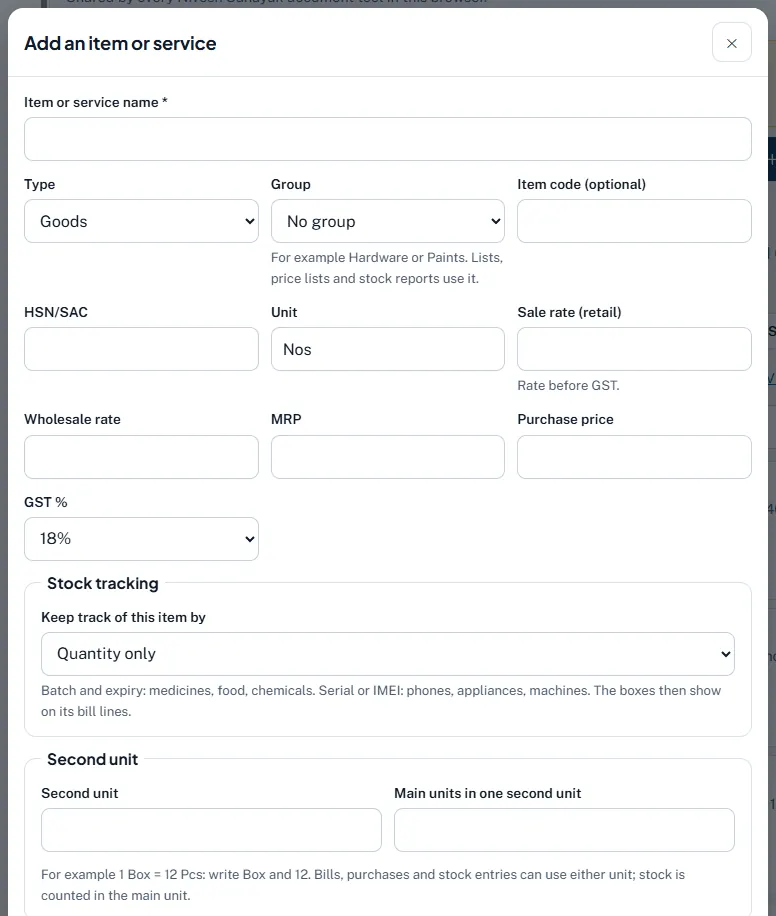
Step by step
- Open Items and services. In My data press Add an item or service.
- Name and type. Item or service name *, Type Goods or Service, Group, Item code (optional).
- Tax code and unit. HSN/SAC and Unit (Nos, Kg, Mtr, Bag…).
- Rates. Sale rate (retail) (before GST), Wholesale rate, MRP, Purchase price.
- GST %. Choose the rate: 0%, 0.1%, 0.25%, 1.5%, 3%, 5%, 12%, 18% or 40%.
- Stock tracking. Keep track of this item by: Quantity only, Batch and expiry, Serial or IMEI number, or Batch, expiry and serial.
- Second unit (optional). For example 1 Box = 12 Pcs: type Box and 12. Bills, purchases and stock entries can use either unit; stock is counted in the main unit.
Worked example
Wall putty 20 kg: Goods, group Paints, HSN 3214, unit Bag, retail ₹650, wholesale ₹610, MRP ₹720, GST 18%. On a bill, typing "putty" fills 1 Bag × ₹650 + 18% GST = ₹767 (wholesale customers get ₹610).
Rules and dates
HSN digits on invoices: 4 digits if last year's turnover was up to ₹5 crore, 6 digits above it (Notification 78/2020-CT, from 1 April 2021). E-invoices need at least 6 digits. The 12% and 28% GST slabs were removed for most goods from 22 September 2025; check each item's rate with the HSN finder.
Common mistakes and how to fix them
- Rate typed with GST. Sale rate is before GST.
- A medicine without batch tracking. Choose Batch and expiry so bills ask for them and expiry reports work.
Try it now: it is free and needs no login.Open My data
Related help
Groups of parties and itemsGroups sort your parties and items, like "Retail customers", "Ludhiana route" or "Paints". Reports then add them up…Import from ExcelStarting with hundreds of items or customers? Fill one Excel file and import it. You see every row, with any problem,…Stock in the AppStock is worked out from your documents: purchase bills and opening stock bring goods in, invoices and cash memos take…Find or check an HSN codeEvery item on a GST invoice needs an HSN code (SAC for services) with enough digits. Search by everyday words, check a…